

Less than one in five people trust AI to run reliably without human review. Someone still has to think through the information architecture, care about the user, and decide what the final product actually needs to show. That someone is you.
What AI does well, though, is handle the repetitive tasks that eat up your day—a shift that reflects broader changes shaping the future of UI/UX design. That frees up human creativity for what matters most—the strategic thinking behind good design.
In this article, we’ll cover eight AI tools for UX designers worth knowing: Flowstep, Claude, Figma Make, Cursor, Lovable, Midjourney, Adobe Firefly and Voicepanel. Some support the full design journey; others specialize in specific stages.
Why UX designers are adding AI-powered tools to their workflow
So why are UX designers increasingly bringing AI into their workflow? There are a few reasons:
- Getting past the blank canvas faster: Every minute you spend staring at an empty artboard, your brain insists your first idea needs to be good. It doesn’t. It just needs to exist. AI tools make it easy to start. Describe an interface, press enter, and you have a rough starting point.
- Exploring more design directions without the time penalty: Before AI, exploring three directions meant three times the work. Now, designers can test multiple directions in the time it used to take to set up a single artboard.
- Connecting PMs, designers and engineers: At every manual handoff, something can get lost. AI tools reduce that translation overhead.
- Enabling non-designers to contribute earlier: AI is also widening who can shape ideas in the first place. Founders can sketch concepts without a dedicated wireframe designer’s support. Engineers can generate UI references before writing code. Researchers can turn interviews and feedback into structured insights faster.
Quick comparison: AI tools for UX designers at a glance
Here are our top picks for AI tools that speed up the design workflow.
| Tool | Best for | What it does | Pricing |
| Flowstep | PMs, founders, designers, engineers who need real UI fast | Generates full, editable UI screens from text prompts on an infinite canvas | Free version, then from $15 |
| Claude | UX copy, research synthesis, design documentation | AI assistant for writing, analysis, and complex reasoning | Free; Pro from $17/month |
| Figma Make | Quick UI exploration inside Figma workflows | Generates UI layouts inside Figma from text prompts | Included in Figma Full plans (from $20/month) |
| Cursor | Engineers building or prototyping UI in code | AI-native code editor for frontend development | Free plan, then from $20/month |
| Lovable | Founders and PMs who need a working app fast | Builds full-stack web apps from natural language prompts | Free, then from $25/month |
| Midjourney | Visual ideation and mood boards | Generates high-quality visuals and design directions from text | From $10/month |
| Adobe Firefly | Creating and editing visual assets with generative AI | Generates and edits images, video and design elements | Free, then from $9.99/month |
| Voicepanel | UX research teams running user testing | AI-powered platform for automated user interviews and feedback | N/A |
8 best AI tools for UI/UX designers
Let’s dive into more detail and see how each can help you.
Flowstep

Flowstep is the most user-friendly, fastest and easiest AI design tool for going from a rough idea to real, editable UI—and everyone on the team can use it, not just designers.
Just describe what you want in plain language, e.g., “a SaaS dashboard for a logistics company, clean layout, sidebar navigation, dark mode, data cards for shipment tracking.” Press enter. Flowstep generates actual interface screens—not wireframes, not boxes with placeholder content; real, polished UI. Multiple screens or different design versions from one prompt if you want.
You can also attach a PRD, upload a reference image, or paste a link to give Flowstep more context before generating. Editing is easy. Explain what you want changed in natural language and see it adjusted to your vision automatically. You can also do this manually to save generation credits.
When you’re ready to move into Figma, select your design and press ?C and ?V. Editable layers stay intact, no Figma plugin or any integration steps needed.
You can also export it as production-ready React, TypeScript or Tailwind CSS code.
Features
- Polished UI generation from natural text: Describe any screen, press enter and get production-ready interface design output on an infinite, editable canvas
- Multi-screen flow generation: Get complete experiences in one go: login, dashboard, profile pages, etc.
- AI editing and manual control: Refine generated screens through conversation or edit manually
- Copy to Figma instantly: Select any design, hit ?C and ?V in Figma
- Reference-aware generation: Attach PRDs, upload images, paste links—give Flowstep real context to get more aligned designs
- Real-time collaboration: Multiple teammates can work on the same canvas simultaneously with live changes without version control mixups
- Production-ready code export: Export clean React, TypeScript and Tailwind CSS
Pricing

Claude

Claude is an AI assistant built by Anthropic, particularly solid for brainstorming in the design process.
If you need five variations of an error message, a complete set of onboarding text, or your design rationale explained for a stakeholder presentation, Claude delivers. It understands nuance in a way a lot of other tools don’t, and it takes direction well enough to produce UX copy that sounds human.
You can paste your notes from stakeholder interviews, a batch of user feedback, or a raw transcript and ask Claude to pull themes, highlight contradictions, or draft a findings summary.
It can also produce functional HTML and CSS—not production-quality, but good enough for testing.
Features
- UX copy generation: Get interface copy for different contexts
- Research synthesis: Turn notes, transcripts and surveys into structured insights
- Persona and JTBD development: Draft user personas, jobs-to-be-done statements and scenario flows
- Functional HTML prototyping: Generate simple working prototypes from design descriptions for quick user testing
- Design documentation: Write design rationale, handoff notes and PRD feedback faster
- Complex problem reasoning: Work through information architecture decisions or hard-to-resolve strategic issues
Pricing

Figma Make

Figma Make is Figma’s native AI generation feature. Describe anything and get a UI layout using the context from your component libraries and brand guidelines. Its AI capabilities for quick UI exploration for designers who want AI assistance without leaving Figma are genuinely useful.
However, the generated screens tend to look template-like, iteration on complex layouts slows down noticeably, and manual edits sometimes get overwritten when you regenerate.
Features
- Prompt-to-UI inside Figma: Describe a screen and generate a layout using your component library and brand guidelines
- Design system context-awareness: Pulls from Figma team libraries to keep generated output on-brand
- Interactive prototyping: Create clickable prototypes with basic interactions
- MCP integration: Connect with AI coding tools like Cursor and Windsurf via Figma’s MCP server for design-to-code workflows
- Standard Figma collaboration: Works within existing Figma files with full version history
Pricing

Cursor

Cursor is an AI-native code editor. It’s a developer tool first—but if you work closely with engineers, or you’re a designer who can read code, it belongs on your radar.
Describe what you want to build, get the code. Cursor indexes your entire codebase, so its suggestions are contextually accurate. You can ask questions about how a feature works, point it at a design reference, or paste an error trace and get a targeted fix.
Some designers use Cursor for building working prototypes that go beyond what no-code tools can handle, e.g., when cross-platform compatibility, authentication or database logic is involved. It’s a steeper learning curve than some tools, but more flexible for complex problems.
Features
- Natural language code generation: Describe interface design requirements and get working code
- Full codebase context: AI models have access to your entire repository, not just the current open file
- Tab autocomplete: Predicts full functions and logic blocks based on surrounding context
- In-editor debugging: Paste error traces and get context-aware fixes
- Multi-model support: Switch between different AI models, including Claude and GPT
- Privacy mode: Code stays local without being stored externally
Pricing

Lovable

Lovable is a relatively new tool for vibe coding that lets you describe any application you want in plain language and get a full-stack web app: frontend, backend and database, deployed, with a live URL.
While Lovable is excellent at getting you to a working starting point quickly, for more complex problems—sophisticated state management, production-grade security, anything mission-critical—most teams export to GitHub or Claude Code and continue in a proper development environment.
Features
- Full-stack generation from prompts: Creates frontend, backend and database from text
- Visual editing: Tweak UI after generation without touching code
- GitHub sync: Full version control and code export
- One-click deployment: Live URL in minutes; Vercel integration if you want to host elsewhere
- Supabase integration: Database and authentication handled automatically
- Team collaboration: Workspace collaboration included in some plans
Pricing

Midjourney

The use cases of Midjourney in UX are narrow, but for image generation, it’s solid. Make mood boards, visual direction-setting, concept art, custom illustrations or hero images.
One comparison worth calling out: DALL-E (available via ChatGPT) covers similar text-to-image territory in different formats and at a lower entry cost, but Midjourney’s output quality for design-adjacent work is generally stronger.
What Midjourney is not: a UI design tool. The output is image files. No layers, no editable visual elements, no path to production.
Features
- Text-to-image generation: Create visuals from text prompts
- V7 with Draft Mode: Fast visual prototyping with improved consistency for maintaining a cohesive design direction
- Omni Reference: Reference styles or characters from existing images to maintain visual consistency across a project
- Web editor: Inpainting, outpainting, zoom and prompt editing
- Stealth Mode: Keep generated images private
- Commercial use rights: All paid plans include rights to use generated imagery commercially
Pricing

Adobe Firefly

Adobe Firefly is Adobe’s generative AI suite. Its most useful features for UX work are Generative Fill in Photoshop and Generative Recolor in Illustrator. Generative Fill lets you select any part of an image, describe what you want there, and the AI replaces or extends it contextually. Generative Recolor lets you run automatic design variations across an entire icon set or illustration system without editing each element.
Firefly makes less sense for graphic designers not already in the Adobe ecosystem than standalone tools for pure image generation. Firefly is also not a UI design tool—it won’t help you build user flows or generate interface screens.
Features
- Text to image: Generate visual elements from text
- Generative fill: Replace or extend any part of a Photoshop image using a prompt
- Generative recolor: Apply color palette design variations across vector artwork in Illustrator
- Text to video: Generate short video clips from text prompts
- Firefly boards: Collaborative concept boards for organizing design directions and visual references
- Partner model access: Use DALL-E, Google Imagen and Flux models directly within Firefly on premium plans
- Commercially safe outputs: Trained on licensed content
Pricing

Voicepanel

Most of this list is about making things. Voicepanel is about understanding people. It belongs in this list of AI tools for UX designers because good interface design without talking to real users is just guesswork.
Voicepanel automates user interviews. Define your research objectives, set up an intercept—in-app, email invite, or via their built-in panel—and the AI runs the conversations for you. It supports voice, video, chat and screen share in multiple languages. Voicepanel asks follow-up questions based on what participants say, adapts in real time, and synthesizes everything into data-driven insights.
User testing with working prototypes is also supported: participants can interact with what you have, view images or videos, and complete in-app tasks while the AI observes and asks follow-up questions.
Features
- AI-moderated interviews: Conducts conversations with users dynamically, probing deeper based on responses
- Multi-format research: Voice, video, phone and chat sessions available
- Built-in recruitment panel: Custom demographic targeting and screener questions
- Automated synthesis: Turns conversations into actionable insights
- Prototype and concept testing: Participants interact with working prototypes, images or video during sessions
Pricing
Voicepanel tailors pricing to individual needs with pay-as-you-go or subscription options.
Choose the right AI models for your design system workflow
There’s no single best tool. There’s a best tool for your current stage—especially as UX trends evolve and change how businesses build digital products.
If you’re trying to get from an idea to something visual, the go-to choice is a UI generation tool like Flowstep. Describe what you’re building, press enter, and you’ve got real, generated screens to work from in under two minutes, giving you a starting point for the rest of the design process.
If you’re trying to understand users before you start designing or validating ideas, Voicepanel helps with UX research and user testing.
If you’re writing UX copy, synthesizing research notes or drafting design documentation, Claude can speed it up.
FAQs
Can AI generate real UI design variations from text prompts?
Yes—and quality has improved substantially in the past year. Tools like Flowstep generate actual, editable interface screens from plain language descriptions. Not wireframes with placeholder content—full-size UI screens with visual elements you can refine, copy to Figma, or export as production code. The key to great results is giving enough context in your prompt: product type, target user, design direction, and any brand guidelines you want reflected.
Do AI design tools replace Figma?
It depends on your workflow. Some tools let you skip Figma altogether, while others make it easy to export designs into Figma if your workflow is based on it. Many designers use both AI UX generation tools and Figma. Bonus points if they connect smoothly.
What’s the fastest way to turn an idea into a UI design?
Describe it in an AI UI generation tool to get editable screens in minutes. Edit with AI or copy to Figma and keep going from there. This way, the time it takes to get from idea to shareable design is shorter than most teams spend in their first alignment meeting.
Will AI replace UX designers?
No. AI automates the mechanical parts of the design process: generating design variations, applying layout patterns, and producing visual elements. The judgment involved in good UX work (understanding what users actually need, navigating organizational constraints, knowing how to apply data-driven insights, solving complex problems that require empathy and context) still requires a human. The designers who figure out how to use AI tools well will have a real advantage in the industry.
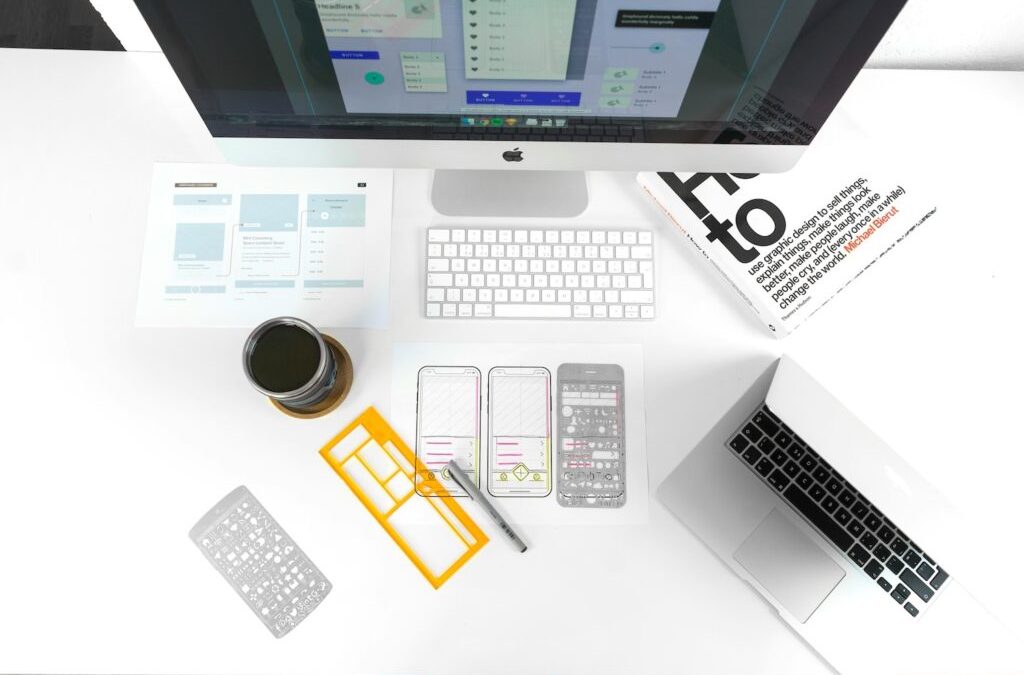
Featured image by UX Store on Unsplash
The post 8 Top AI Tools For UI/UX Design appeared first on noupe.